OPay Android SDK
All payment solutions offered by OPay readily available in your clients' hands.
Prerequisites
OPay SDK will allow your Android application to:
- Launch full-screen activities to collect payment details, shipping address, and shipping method.
- Accept card, reference code, installment payment readily available from OPay.
Make sure you have an active OPay merchant account, or create account.
To avoid any conflicts and have a seamless integration, make sure you have the following compatibility list satisfied.
| item | compatible version | References |
|---|---|---|
Android SDK Platform | 5.0 (API level 21) and above | Android developers' guide |
Android Gradle Plugin | 4.1.3 | Android developers' guide |
| Gradle | 6.5 and above (gradle-6.5-bin.zip) | gradle.org |
How Android SDK Plugin Looks Like
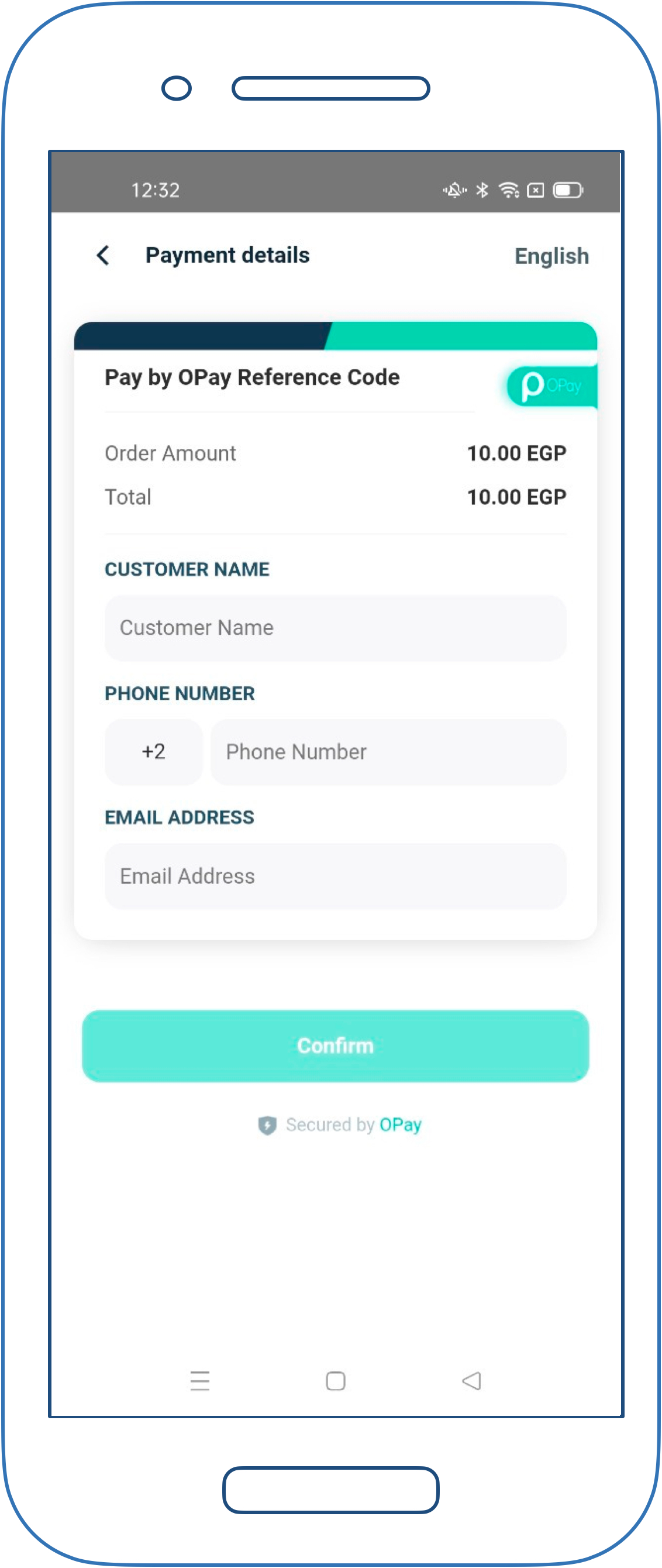
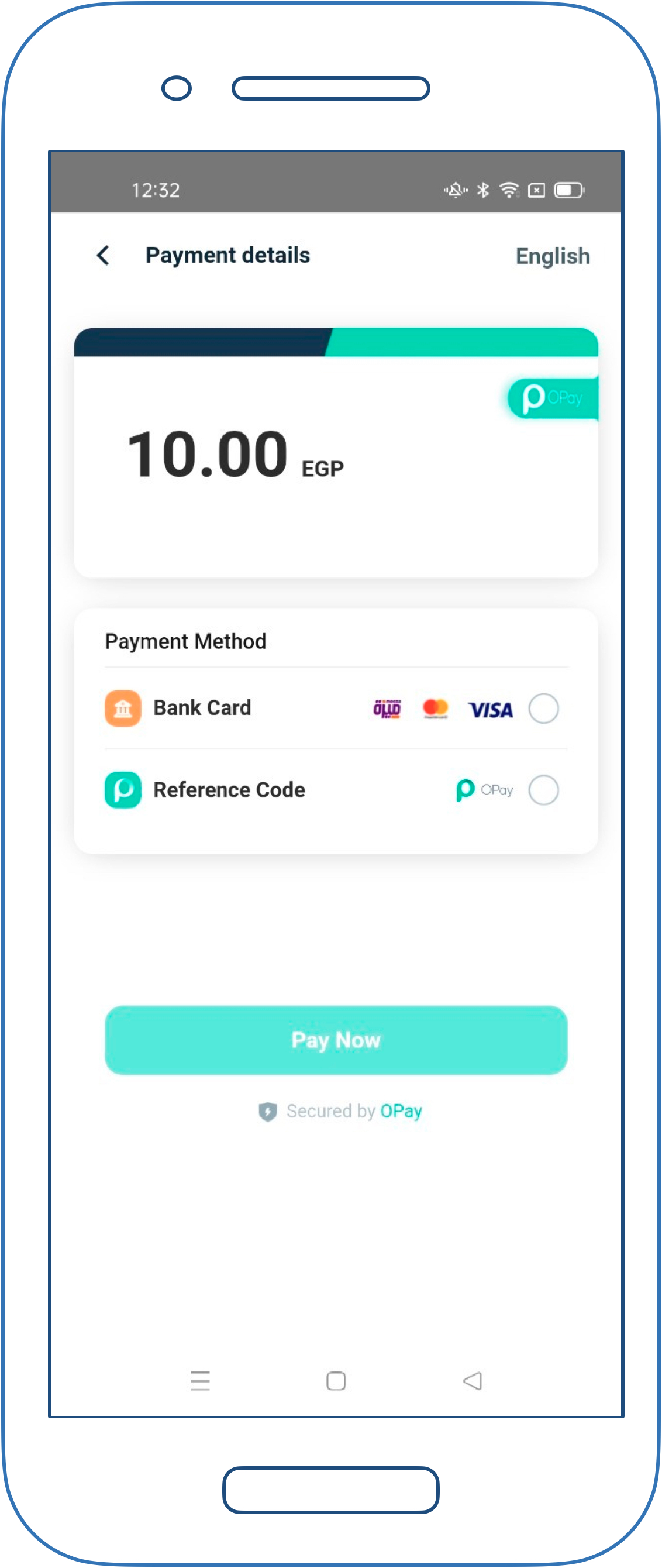
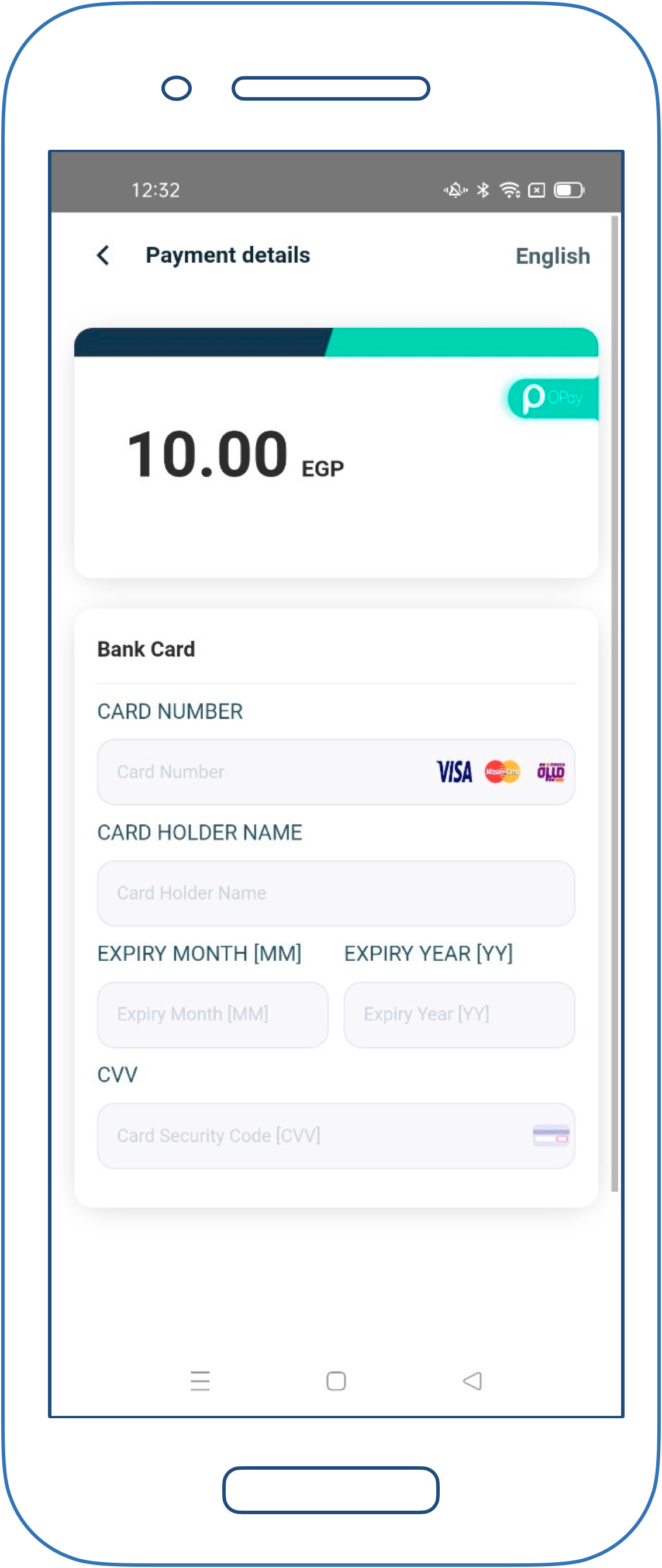
Download and test OPay demonstrative application.
How it works
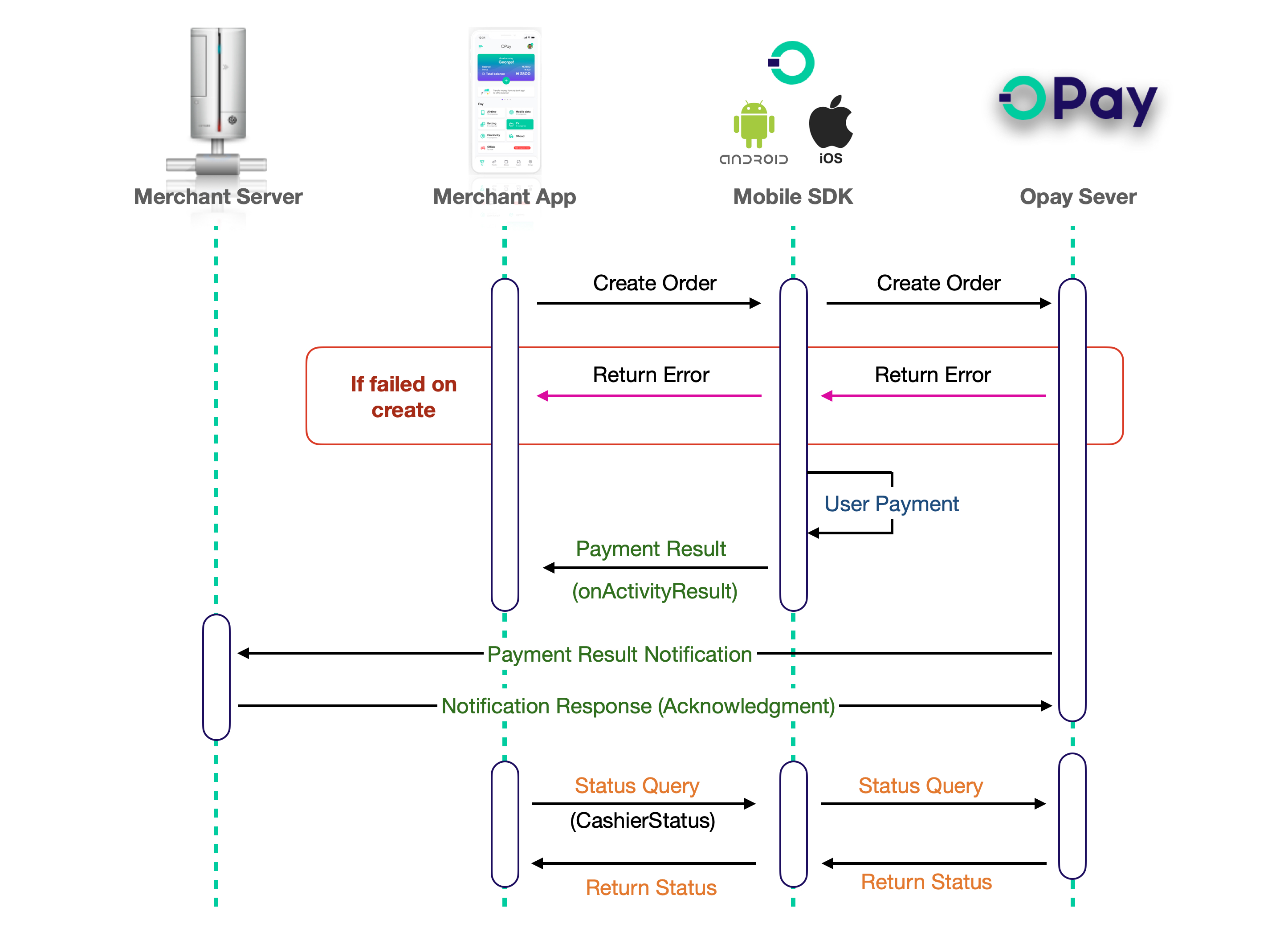
On this page we will walk you through Android SDK integration steps:
- Initialize and configure
AndroidSDK. - Present Payment options and collect you client's payment data.
- OPay
AndroidSDK plugin will send payment request to OPay. - Return payment processing information to our
AndroidSDK plugin. - Within your
Androidapplication, inform your client with the payment result.
SDK Integration
You can integrate OPay android SDK in two different ways, manual and automatic integrations. This section describes both integration methods.
Please note that you only need to follow ONLY one method as per your personal convenience.
Option 1: Manual Integration
- OPay
AndroidSDK. - Copy the downloaded
aarfile to your project' libs folder. - Configure your module Gradle build file by inserting the below
repositoriesblock inside theandroidblock - Configure the below dependency (that are NOT already supported in your
dependenciesblock) to your project, specify a dependency configuration such as implementation in thedependenciesblock of yourbuild.gradlefile. - If your gradle version great than 7.0, you should add the aar file like bellow:
insted of the implementation way on step 4:implementation files('libs/cashier-sdk-1.1.2.aar')
You can find more detail information on Google official document psd-add-aar-jar-dependencyimplementation(name: 'cashier-sdk-1.1.2', ext: 'aar')
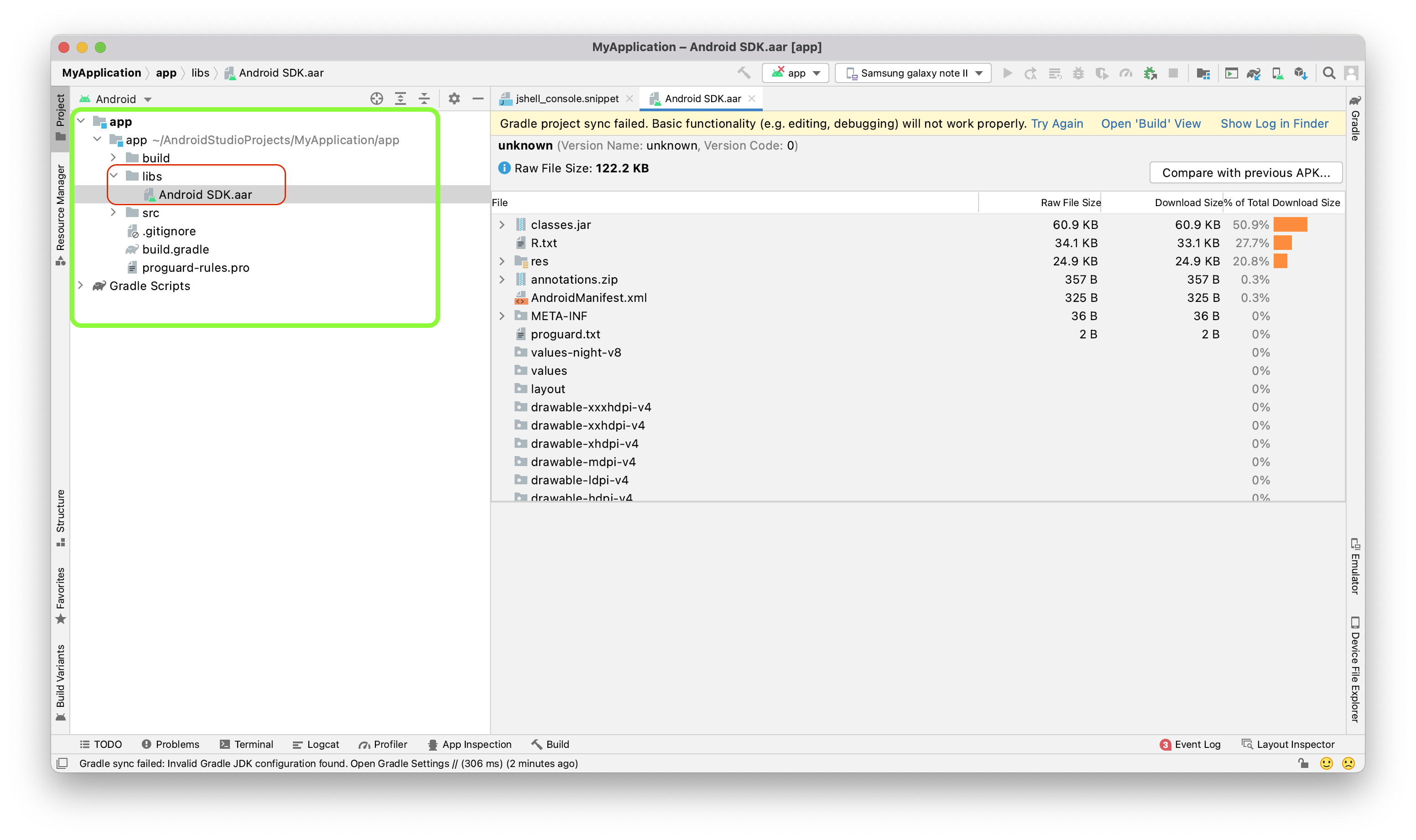
allprojects{
    repositories {
        mavenCentral()
        flatDir {
            dirs 'libs'
        }
    }
}implementation(name: 'cashier-sdk-1.1.2', ext: 'aar')Option 2: Auto Integration
- Configure the below dependency to your
build.gradlefile. - Configure your module Gradle build file by inserting the below
repositoriesblock inside theandroidblock
implementation 'team.opay.sdk:cashier-sdk:1.1.2'maven {
url 'http://arifactory.opayride.com/nexus/content/repositories/public/'
credentials {
username = 'merchant'
password = 'merchant'
}
}SDK API hooks
After integrating OPay SDK, now it's time to know how to use our SDK API hooks to:
- Toggle between Sandbox (testing) and Production environment.
- Create payment order.
- Handling payment result.
- Order status query.
Setup SDK Environment
During the development and integration phase, you may use our SDK in testing mode be setting the sandBox to true:
PaymentTask.Companion.setSandBox(true);PaymentTask.sandBox = falseOnce you are done with your testing and your application is now ready for production, you can toggle false the sandBox variable:
PaymentTask.Companion.setSandBox(false);PaymentTask.sandBox = falseCreate Payment Order
Your app cart item should implement PayInput object, the below table illustrates the values that should be passed through your PayInput object.
| Parameter | type | Required | Description | |
|---|---|---|---|---|
| publickey | String | required | Your OPay merchant account public key. | |
| merchantId | String | required | Your OPay account merchant ID. | |
| merchantName | String | required | Merchant Name to be displayed in cashier checkout form. | |
| reference | String | required | Payment reference number in your system. | |
| countryCode | String | required | Country code (EG). | |
| currency | String | required | Currency type (EGP). | |
| payAmount | Long | required | payment total amount. | |
| productName | String | required | Name of Product/Service to be purchased. | |
| productDescription | String | required | Description of Product/Service to be purchased. | |
| callbackUrl | String | optional | If you have sent callbackUrl through API, OPay will send callback notification to this callbackUrl. If you didn't send callbackUrl through API, you need to configure webhook url on the merchant dashboard, and OPay will send callback notification to this webhook url. See callback here | |
| expireAt | Integer | required | Payment expiration time in minutes. | |
| payMethod | String | optional | The preferred payment method to be presented to your customer. See available options here. If not set, all supported payment methods will be available to your customer to choose from. | |
| userInfo JSON Object | ||||
| userId | String | optional | the customer user id | |
| userName | String | optional | the customer user name | |
| userMobile | String | optional | the customer user mobile | |
| userEmail | String | optional | the customer user email | |
Create PayInput **PayInput** object is given below.
PayInput payInput=new PayInput("OPAYPUB123456",//public key
    "256612345678901",//merchantID
    "TEST 123",//merchant name
    "a2b050zzzz",//reference, reference unique
    "EG", //uppercase//country
    10000,//amount
    "EGP", //uppercase //currency
    "test",//ProductName
    "testtest",//ProductDescription
    "http://www.baidu.com",//callback Url
    "BankCard",//Payment Type
    30,//expire at
    "110.246.160.183",// user ip
    new UserInfo("UserId","UserName","UserPhone","Email")
);
val payInput = PayInput(
publickey = "{PublicKey}",
merchantId = "256612345678901",
merchantName = "TEST 123",
reference = "12347544444555666",
countryCode = "EG", // uppercase
currency = "EGP", // uppercase
payAmount = 10000,
productName = "",
productDescription = "",
callbackUrl = "http://www.callbackurl.com",
userClientIP = "110.246.160.183",
expireAt = 30,
paymentType = "", // optional
userInfo = UserInfo(
//optional
userId = "userid001",
//optional
userName = "David",
//optional
userMobile = "201066668888",
//optional
userEmail = "[email protected]",
)
)After initiating the required PayInput data, you need to call PaymentTask(this).createOrder to start creating an order. Code example as follows:
new PaymentTask(this).createOrder(
    payInput,((status, orderInfoHttpResponse) -> {
        switch (status) {
            case LOADING:
                break;
            case CANCEL:
                break;
            case SUCCESS:
                break;
        }
        return Unit.INSTANCE;
    })
);
PaymentTask(this).createOrder(payInput, callback = { status, response ->
when (status) {
Status.ERROR -> { // error
Toast.makeText(this, response.message,
Toast.LENGTH_SHORT).show()
} else -> {
}
}
})Once CreateOrder is called, user will be redirected to finish payment. You need to override the callback listener in case of error. The callback will only return the CreateOrder error. If you do not add a callback, error toast will pop up.
Sample CreateOrder error response
{
    "code": "00001",
    "message": "order already exist",
    "data": null
}
Handling Payment Result
Once the payment has been completed by your client, OPay server will respond back to the SDK to let you know the payment processing result. To get this result information, you will need to rewrite the onActivityResult method in the Activity or Fragment, and call the following methods. :
@Override
protected void onActivityResult(int requestCode, int resultCode, @Nullable Intent data) {
    super.onActivityResult(requestCode, resultCode, data);
    if (requestCode == PaymentTask.REQUEST_PAYMENT) {
        if (resultCode == PaymentTask.RESULT_PAYMENT) {
            WebJsResponse response = (WebJsResponse) data.getExtras().getSerializable(PaymentTask.RESPONSE_DATA);
            switch (response.getOrderStatus()) {
                case PaymentStatus.INITIAL: {
                    Log.e("", response.getOrderStatus());
                    break;
                }
                case PaymentStatus.SUCCESS: {
                    Log.e("", response.getOrderStatus());
                    break;
                }
                case PaymentStatus.FAIL: {
                    Log.e("", response.getOrderStatus());
                    break;
                }
                case PaymentStatus.PENDING: {
                    Log.e("", response.getOrderStatus());
                    break;
                }
            }
        }
    }
}
override fun onActivityResult(requestCode: Int, resultCode: Int, data: Intent?) {
super.onActivityResult(requestCode, resultCode, data)
if (requestCode == PaymentTask.REQUEST_PAYMENT){
if (resultCode == PaymentTask.RESULT_PAYMENT){
val response = data?.getSerializableExtra(PaymentTask.RESPONSE_DATA) as WebJsResponse?
when(response?.orderStatus){
PaymentStatus.INITIAL ->{}
PaymentStatus.PENDING ->{}
PaymentStatus.SUCCESS ->{}
PaymentStatus.FAIL ->{}
PaymentStatus.CLOSE ->{}
}
}
}
}
}Due to network and any other issues, the order status may not be timely. It is highly recommended to call order status inquiry to ensure the accuracy.
Order Query Status
Due to network and any other issues, the order status may not be timely. It is highly recommended to call order status inquiry to ensure the integrity of your data. To that end, You will need to create CashierStatusInput object that contains the following request parameters:
| Parameter | type | Required | Description |
|---|---|---|---|
| publickey | String | required | Your OPay merchant account public key. |
| merchantId | String | required | Your OPay account merchant ID. |
| reference | String | required | Payment reference number in your system. |
| countryCode | String | required | Country code (EG). |
CashierStatusInput statusInput = new CashierStatusInput(
    "{PublicKey}",
    "256621050820270",
    "12347544444555666",
    "",
    "EG"
);
val input = CashierStatusInput(
privateKey = "{PublicKey}",
merchantId = "256612345678901",
reference = "12347544444555666",
countryCode = "EG"
)After creating the CashierStatusInput object, you need to call the PaymentTask( activity ).getCashierStatus() method to query order status and process the subsequent logic according to the response object returned.
new PaymentTask(this).getCashierStatus(statusInput, (status, response) -> {
    if(status == Status.SUCCESS){
        //data
        OrderInfo orderInfo = (OrderInfo)response.getData();
    }else if(status == Status.ERROR){
        Toast.makeText(this, response.getMessage(), Toast.LENGTH_SHORT).show();
    }else{

    }
    return null;
});
PaymentTask(this).getCashierStatus((input, callback = { status, response ->
when (status) {
Status.SUCCESS -> {
val data = response.data as OrderInfo
// data
}
Status.ERROR -> {
Toast.makeText(this, response.message, Toast.LENGTH_SHORT).show()
}else -> {
}
}
})Response data format is as follows:
{
    "code": "00000",
    "message": "SUCCESSFUL",
    "data":{
        "reference":"1001000",
        "orderNo":"10212100000034000",
        "status":"SUCCESS",
        "vat":{
          "total":10000,
          "currency":"EGP",
          "rate":100,
          "currencySymbo":"ج.م"
        },
        "failureReason":null,
        "silence":"Y"
    }
}